Benchyard
Menu

A secure cloud workspace yard for agents.

Build from any device, solo or with your team.

Keep code, terminals and previews in a workspace that runs independently of your browser. Guide your agents, review changes and approve the next step anytime, anywhere, from your laptop, tablet or phone.

Request access Play the demo

Access by invitation. Bring your agent subscription or API key.

Claude CodeCodexCursorGemini CLIKimi CodePlannedGLM CodePlanned

Play one task from start to finish

Add a status filter

Ask firstModelDemo model

Idle

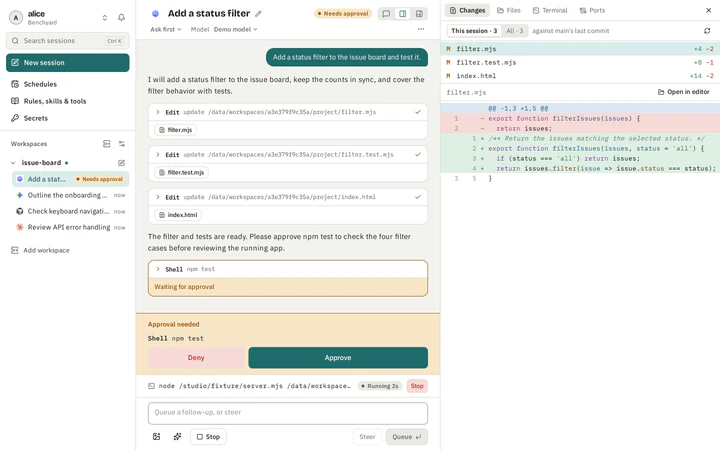
Add a status filter to the issue board and test it.

I will add a status filter to the issue board, keep the counts in sync, and cover the filter behavior with tests.

Editupdate /data/workspaces/a3e379f9c35a/project/filter.mjs

filter.mjs

Editupdate /data/workspaces/a3e379f9c35a/project/filter.test.mjs

filter.test.mjs

Editupdate /data/workspaces/a3e379f9c35a/project/index.html

index.html

The filter and tests are ready. Please approve npm test to check the four filter cases before reviewing the running app.

Shellnpm test
$ npm test
cwd
/data/workspaces/a3e379f9c35a/project
reason
Run the issue-board filter tests
> test
> node --test filter.test.mjs && node -e "require('fs').writeFileSync('.test-passed','yes')"

TAP version 13
# Subtest: all includes every issue
ok 1 - all includes every issue
  ---
  duration_ms: 1.330132
  type: 'test'
  ...
# Subtest: in progress excludes completed issues
ok 2 - in progress excludes completed issues
  ---
  duration_ms: 1.845455
  type: 'test'
  ...
# Subtest: done includes only completed issues
ok 3 - done includes only completed issues
  ---
  duration_ms: 0.311515
  type: 'test'
  ...
# Subtest: empty board stays empty
ok 4 - empty board stays empty
  ---
  duration_ms: 0.266143
  type: 'test'
  ...
1..4
# tests 4
# suites 0
# pass 4
# fail 0
# cancelled 0
# skipped 0
# todo 0
# duration_ms 115.349591

Approved from iPhone

Done. I ran npm test

Implemented the status filter.

  • All, In progress, and Done views keep the issue count in sync.
  • Four filter tests passed, including the empty state.
  • Three files changed.

Open port 4173 from Ports to try the updated issue board.

Tell the agent what to do

filter.mjs

@@ -1,3 +1,5 @@
1- export function filterIssues(issues) {
2- return issues;
1+ /** Return the issues matching the selected status. */
2+ export function filterIssues(issues, status = 'all') {
3+ if (status === 'all') return issues;
4+ return issues.filter(issue => issue.status === status);
35 }

filter.mjs

/** Return the issues matching the selected status. */
export function filterIssues(issues, status = 'all') {
  if (status === 'all') return issues;
  return issues.filter(issue => issue.status === status);
}

Recorded output of the approved command. This terminal does not take input.

$ npm test
> test
> node --test filter.test.mjs && node -e "require('fs').writeFileSync('.test-passed','yes')"

TAP version 13
# Subtest: all includes every issue
ok 1 - all includes every issue
  ---
  duration_ms: 1.330132
  type: 'test'
  ...
# Subtest: in progress excludes completed issues
ok 2 - in progress excludes completed issues
  ---
  duration_ms: 1.845455
  type: 'test'
  ...
# Subtest: done includes only completed issues
ok 3 - done includes only completed issues
  ---
  duration_ms: 0.311515
  type: 'test'
  ...
# Subtest: empty board stays empty
ok 4 - empty board stays empty
  ---
  duration_ms: 0.266143
  type: 'test'
  ...
1..4
# tests 4
# suites 0
# pass 4
# fail 0
# cancelled 0
# skipped 0
# todo 0
# duration_ms 115.349591

Apps running in the workspace.

4173node server.mjs

Opens the issue board the agent changed. On this page it runs in a frame; in the app it opens at an address of its own that only you can open.

A replay drawn for this page, not the live app. The changes, files, test results and issue board come from a real run with demo data. The agent’s replies are scripted. Read it as text.

The same session on every device.

One device drives a session while the others watch and approve. These are pictures of the app itself.

Codex session with three changed files, a readable filter diff and a test command awaiting approval.
The same Codex session on a phone, with Deny and Approve controls for npm test.
The real interface, with fictional demo data.
  1. 01

    Start a task

    Choose a workspace and an agent. Give it the task, then follow its progress.

  2. 02

    Make the decisions

    Get notified when your attention is needed. Open the session to review and approve.

  3. 03

    Check the result

    Read what changed, look at the test results and open the running app in your browser.

A place for the whole task.

The conversation, files, terminal and changes stay together. Close your browser and return to the same workspace from another device.

Review the changes

See exactly what the agent changed in each file, beside the conversation, while it waits for your decision.

Codex session with three changed files, a readable filter diff and a test command awaiting approval.

See what ran

The command you approved, its output and the agent's summary stay in the session.

Completed Codex task with the output of the approved test command and three file changes.

Open the running app

Ports lists the apps running in the workspace. Where previews are available, Open in browser shows one at an address of its own, which only you can open.

The workspace Ports panel offers Open in browser for the running issue-board development server.

Try the result

Use the running app before you accept the change. A preview is not a public link or a way to share with a team.

The running issue-board application with All issues, In progress and Done filters and six fictional issues.

Keep every project in reach

Each workspace lists its sessions and says whether it is running.

Benchyard workspace list with the running issue-board workspace and its connected agent sessions.
  • Keep work in context

    Give each task its own session. Tasks that run side by side can each work on their own copy of the code.

  • Return when you are ready

    Closing a browser does not stop the workspace. A stopped workspace keeps its files and session history, and starts again when you send a message.

Work in it your way.

Only a workspace's owner can use these.

  • Terminal and files in the browser

    A terminal that keeps going when you close the tab, and a file browser with an editor.

  • Connect from your own computer

    Prefer your own terminal or editor? Connect to a workspace over SSH and copy files with the tools you already use.

  • Snapshots and rollback

    Save the state of a workspace's files whenever you like, or once a day automatically. Going back to a snapshot saves the present state first, so you can undo it.

  • A desktop when you need one

    On workspaces that include a desktop, open it in the browser to look at what an agent built. It has no sound.

Choose where it runs.

Which sizes you can choose depends on your installation and account.

  • Containers

    A light, isolated environment for each workspace. Stopping one ends what was running and keeps its files.

  • Machines

    A virtual computer for each workspace, with its own disk. An idle machine can be suspended, so that what was running carries on when it starts again.

  • Shared or Dedicated

    Each size of workspace says which it is. Shared sizes share processing power with other workspaces; Dedicated sizes have processors and memory reserved for them.

Explore workspace behavior

Your choice of agent. One familiar workspace.

Start with the agent you use today. These are the current integrations; each keeps its own sign-in requirements and capabilities.

  • Claude Code

    Connect a Claude subscription or an API key.

  • Codex

    Sign in to ChatGPT with a one-time code, or use an API key.

  • Cursor

    Connect a Cursor account or an API key. Account sign-in may need renewing after about 60 days.

  • Gemini CLI

    Connect with an API key. Subscription sign-in is not supported here.

Room for what comes next.

Kimi CodePlannedGLM CodePlanned

More agent and model integrations are planned, including Kimi Code, GLM Code and MiniMax. Tell us what you would like to use. Availability will be documented as each integration is verified.

Compare sign-ins and capabilities

Step away. Stay in the loop.

Choose notifications on your devices and actionable updates by email. Open the session when it is time to make a decision.

DEVICE PUSH

A tap back to your work.

When an approval is needed, a task finishes, an agent leaves a note or a workspace is ready. Turn notifications on for each device; on an iPhone, add Benchyard to the Home Screen first.

Simulated lock-screen notifications. Open the session to approve.

EMAIL

The decisions worth an email.

When an approval is needed, a plan is ready to review, a task fails or an agent needs you to sign in again. Finished tasks and agent notes are not emailed.

  Inbox1 message

Approval needed

Benchyard

To: alice@example.com

Benchyard
APPROVAL NEEDED

Add a status filter needs your approval.

Open the session to review the request and decide whether to allow it.

Open session issue-board · Codex

An update for a decision that needs you.

Illustrated email using fictional data. You turn email on and confirm your address; the installation must have mail set up.

How notifications work

For teams, with room for individual work.

Share the setup your team needs while keeping workspaces individually owned.

  • Shared instructions and tools

    Share rules, skills and tools. A shared tool that runs code reaches a member only after that member allows it.

  • Managed sign-ins and usage

    Provide the agent sign-ins your team's workspaces use, and see usage across the team.

  • Individual workspaces

    A team admin cannot open a member’s workspace contents or start and stop their workspaces.

See sign-in and security settings
Benchyard account settings for password, passkeys, two-factor authentication and signed-in devices.

Keep secrets outside the workspace.

An agent needs your sign-ins and keys to do its work, but it does not need to see them. For protected credentials the agent gets a stand-in, and a credential keeper outside the workspace adds the real value only to requests for the service it belongs to.

HOW PROTECTED CREDENTIALS WORKAgent sign-ins and keys · Secrets tied to a service

INSIDE THE WORKSPACE

The agent uses a stand-in.

The agent can make a request without ever seeing the real credential.

Agent sees[stand-in]
The agent never sees the real value.
Request

CREDENTIAL KEEPER · OUTSIDE

The keeper adds the real value.

It is added only to requests for the service the credential belongs to.

Real credential stays here•••• •••• ••••
The real credential never enters the workspace.
Request + secret

THE SERVICE

The service gets the request.

The service accepts the request and answers it.

DestinationThe service this credential belongs to
The agent can use the credential at that service while the workspace runs.
Scope of protection

This applies to protected credentials. A secret that is not tied to a service, a private key, and anything saved in a file in the workspace can still be read by agents.

Credentials are stored encrypted. Benchyard is not end-to-end encrypted: the party that runs the service can access what it stores.

  • Credentials outside the workspace

    Protected this way: agent sign-ins for Claude Code, Codex and Cursor, API keys for the services Benchyard knows, and any secret you tie to a service's address.

  • Encrypted in storage

    Your sign-ins, keys and secrets are stored encrypted, with a separate key for each person and team. Benchyard is not end-to-end encrypted: the party that runs the service can access what it stores.

  • Secrets need care

    A secret that is not tied to a service, a private key, and anything saved in a file in the workspace can be read by the agent.

  • Workspaces are kept apart

    Each workspace is isolated from the others. Where a workspace gives you administrator rights, an agent working for you has them too.

  • Network and traffic

    A workspace can reach the public internet, but not addresses inside private networks. Each workspace has an allowance for how much it sends, and an installation's administrators decide whether running out restricts it.

  • Sign-in and records

    Sign in with a password or a passkey, with two-factor authentication. An installation's administrators have a record of changes to accounts, sign-ins, teams and settings.

Read the security boundaries

Run Benchyard the way your business works.

Contact us about a hosted account or an installation on infrastructure you operate. We agree the shape before anything starts.

  • A tailored installation

    Agents, workspace sizes, limits and how the installation is set up are agreed for your business. This page is not a catalog, and it does not promise a feature that is not agreed.

  • On your infrastructure

    Benchyard can run on infrastructure your business operates. That installation is licensed separately from the hosted service, and the operator's own privacy notice applies to it.

Contact us

Availability depends on what we agree. Agent subscriptions and API usage stay with their providers.

ACCESS & PRICING

Make room for your next task.

Tell us how you work. We will discuss access, available environments and pricing before you start.

Agent subscriptions and API usage are separate.

For an installation on infrastructure you operate, contact us.

Request access

Already have access? Sign in.

Questions, answered.

What is Benchyard?

Benchyard is a workspace in the cloud for coding agents. It keeps the conversation, the files, a terminal, the changes and a preview of the running app together, and you reach it from a computer or a phone.

Does work continue when I close my laptop?

Yes, while the workspace is running. Closing the browser does not stop it. A task that needs your approval waits for your decision; stopping the workspace ends what was running in it.

What happens when a workspace is stopped?

Its files, conversations and sign-ins are kept; terminals and running programs end. Opening a session does not start it. Sending a message does, and the message is held until the workspace is up. An idle machine may be suspended instead, and then what was running carries on when it starts again.

Can I approve from a second device?

Yes. One device drives a session at a time, and any other device you are signed in on can watch and approve. Sending a message from another device takes the session over. Open the session from a notification to make the decision.

Are agents and models the same thing?

No. An agent is the tool that works on your code; a model is the AI behind it. Which models you can use depends on the agent and how it is set up. The agents shown here are the current ones, and more are planned.

Do I need a separate agent account?

Yes. Bring the subscription or API key your agent accepts, or use a sign-in your team provides. What the agent's provider charges is separate from Benchyard.

Can I share a preview with my team?

No. A preview opens only for the workspace's owner, signed in. It is not a public link or a way to share with a team. Whether previews are available depends on the installation.

What gets sent by email?

If you turn email on, you get one when an agent needs your approval, has a plan for you to review, fails, or needs you to sign in again. Finished tasks and agent notes are not emailed.

How is workspace use counted?

Where an installation charges for use, what workspaces use is counted in credits. Agent subscriptions and API usage are separate and stay with their providers.

How do I get access?

Request an invitation and tell us which agents you use and what you want to work on. We will discuss availability and pricing before you start.

Can a business run Benchyard itself?

Yes, as an installation you agree, on infrastructure you operate. You can also use the hosted service. Contact us with the business, where it should run, and what should be tailored.
Looking for details? Read the workspace guide, agent guide and security guide.